 Sport CRM
Invite coaches and staff
Give a coach, manager or administrator their own sign-in to the club with an invitation link, and see what each role can do.
Für: Inhaber
Every staff member signs in with their own email: no shared passwords. You create a link with a role, send it to the person, they sign up and land straight in the club.
Roles
| Role | What they do |
|---|---|
| Owner | Everything, including the club's finances, the Sport CRM subscription and deleting the club. |
| Support | Administrator rights: club settings, staff, custom fields, the change log. The club's finances if the owner allows. |
| Manager | Players, teams, the schedule, leads and tasks. Records payments and sees debtors. Doesn't see income, expenses, pay or price plans. |
| Coach | Their own teams: the schedule, attendance, the roster. Sees players and, if the club allows, leads and their own pay. No club settings. |
Finer switches are in Club settings → Access: whether coaches see the players of all teams, whether they see leads, whether managers can run sessions, and more. In detail: Roles and permissions.
Steps
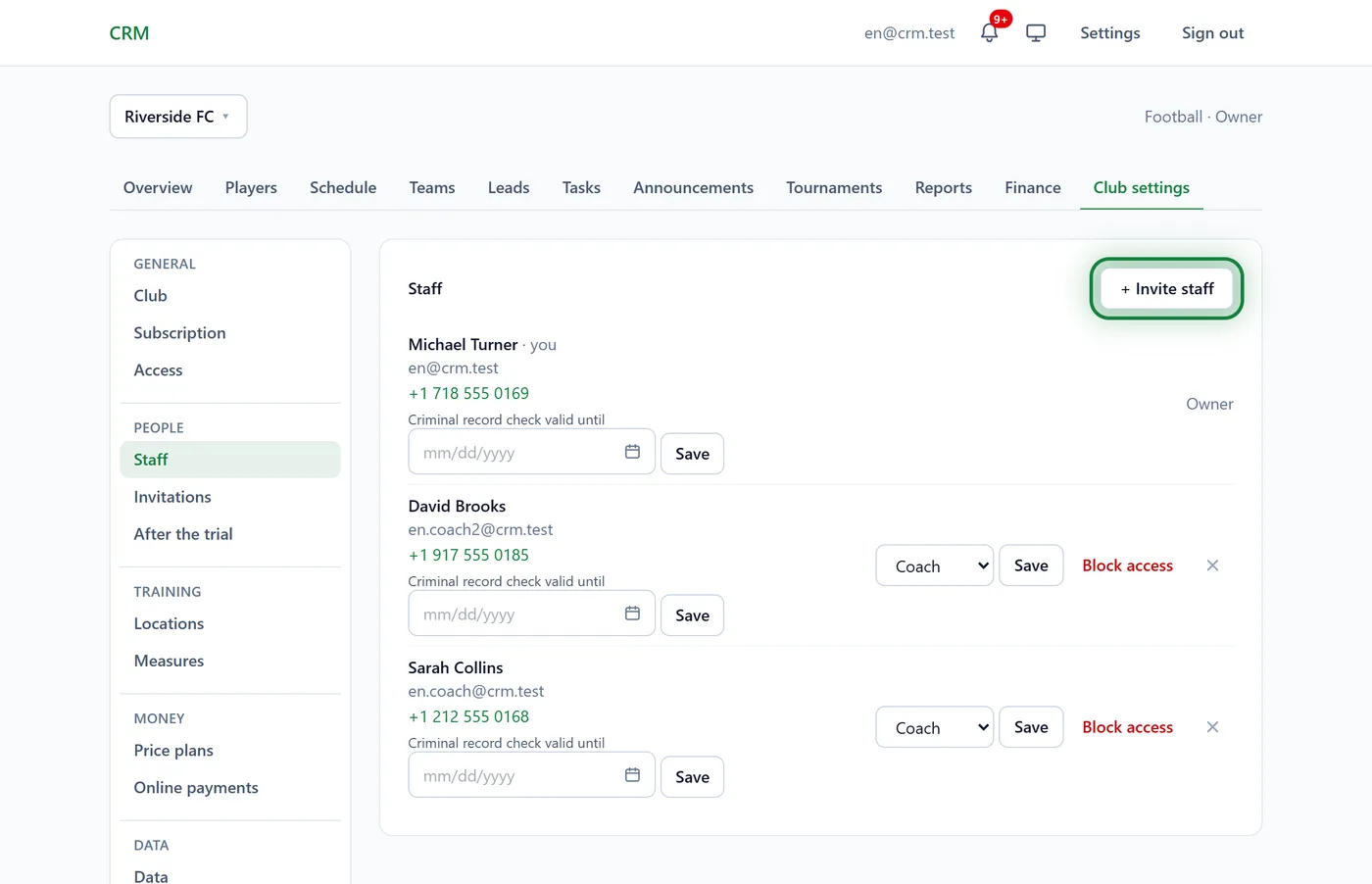
Open Club settings → Staff and click + Invite staff.
Choose the Role. Under Who it is for you can type a name, so you know later which link was whose.
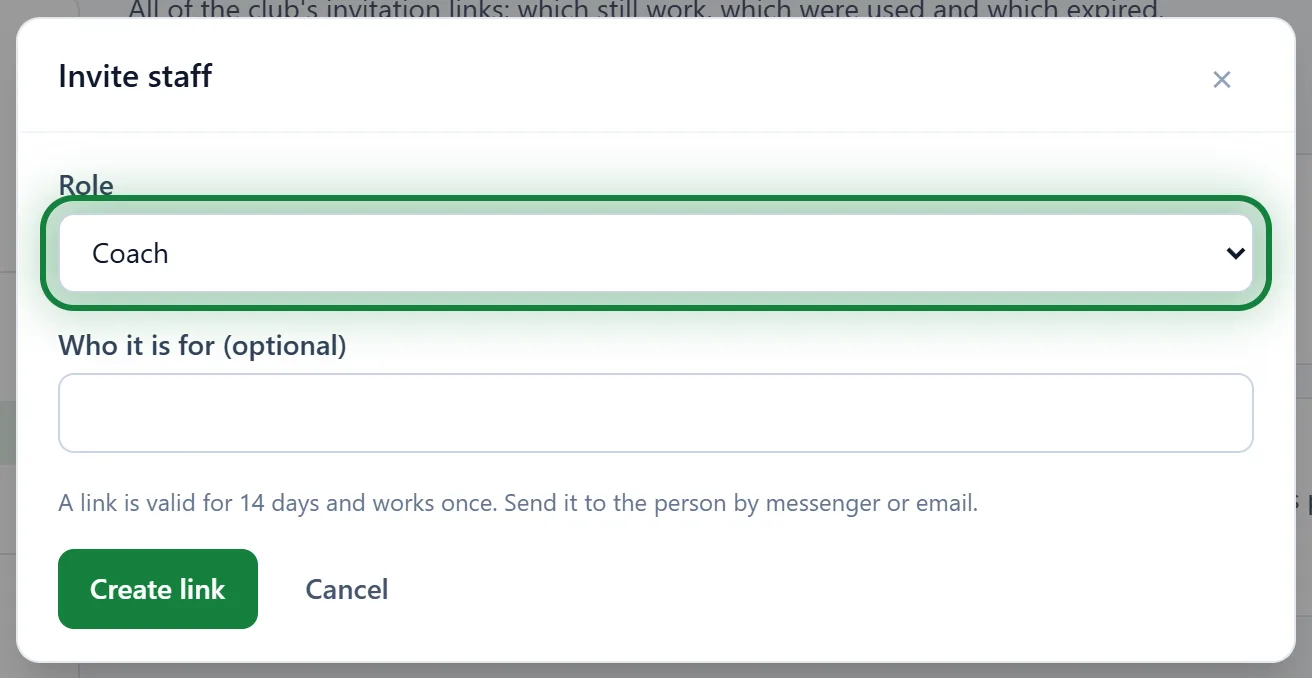
Click Create link, then Copy link, and send it to the person by messenger or email.
They open the link, sign up (or sign in) and see Club invitation. They type Your name in the club and click Join.
The new staff member appears under Staff. Assign a coach to their teams: see Teams and the schedule.
In the app
Invitations are under Menu → Club settings → Invitations, with a Share link button. Someone who was sent a link opens Menu → Accept an invitation in the app and pastes it.
Tips
- A link is valid for 14 days and works once. All links, and who used them, are in Club settings → Invitations.
- You can change a role later in the Staff list: pick the new one and click Save.
- Someone left? Block access, or the cross "Remove the staff member". Their session history stays.
FAQ
Why can't I choose the Support role?
You can only grant roles below your own. Only the owner invites support; a manager is invited by the owner or support.
The link says "This link is invalid, expired or already used"
It has been used, or 14 days have passed. Create a new one, and withdraw the old one with the cross in Invitations if needed.
It says "Your plan's limit of staff is reached"
Cancel invitations nobody has accepted, or move to the Club plan (up to 15 staff) or Academy.