 Sport CRM
Trial session requests
How parents book a trial themselves through a form on the club's website, and how to take each lead through a call, a trial and a decision so nobody slips through.
Für: Manager, Inhaber, Trainer
A lead is a child who doesn't train with you yet, but whose parents are interested. Leads arrive by themselves from the form on your website, or you add them after a call. Each goes New → Contacted → Trial and ends as Joined or Lost.
Who can
Managers, support and the owner. Coaches too, unless the club has turned off Coaches see leads in Club settings → Access.
The sign-up form for your website
Open Leads. At the bottom of the page is the Sign-up form for your website block: the form's link, Copy and Open buttons, and the code to embed the form on the club's website.
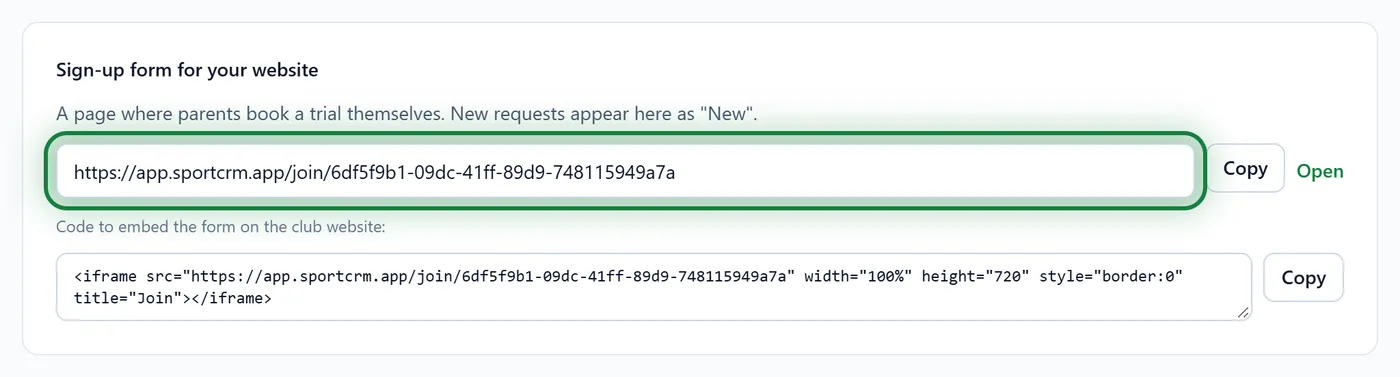
Put the link in your Instagram bio, on Google Maps, on the club's site, on a flyer with a QR code. Or embed the form right on a page of your website with the code from the same block.
Parents fill it in on their phone: their name and phone, where to message them, the child's name and birth year, a comment, and their consent to be contacted.
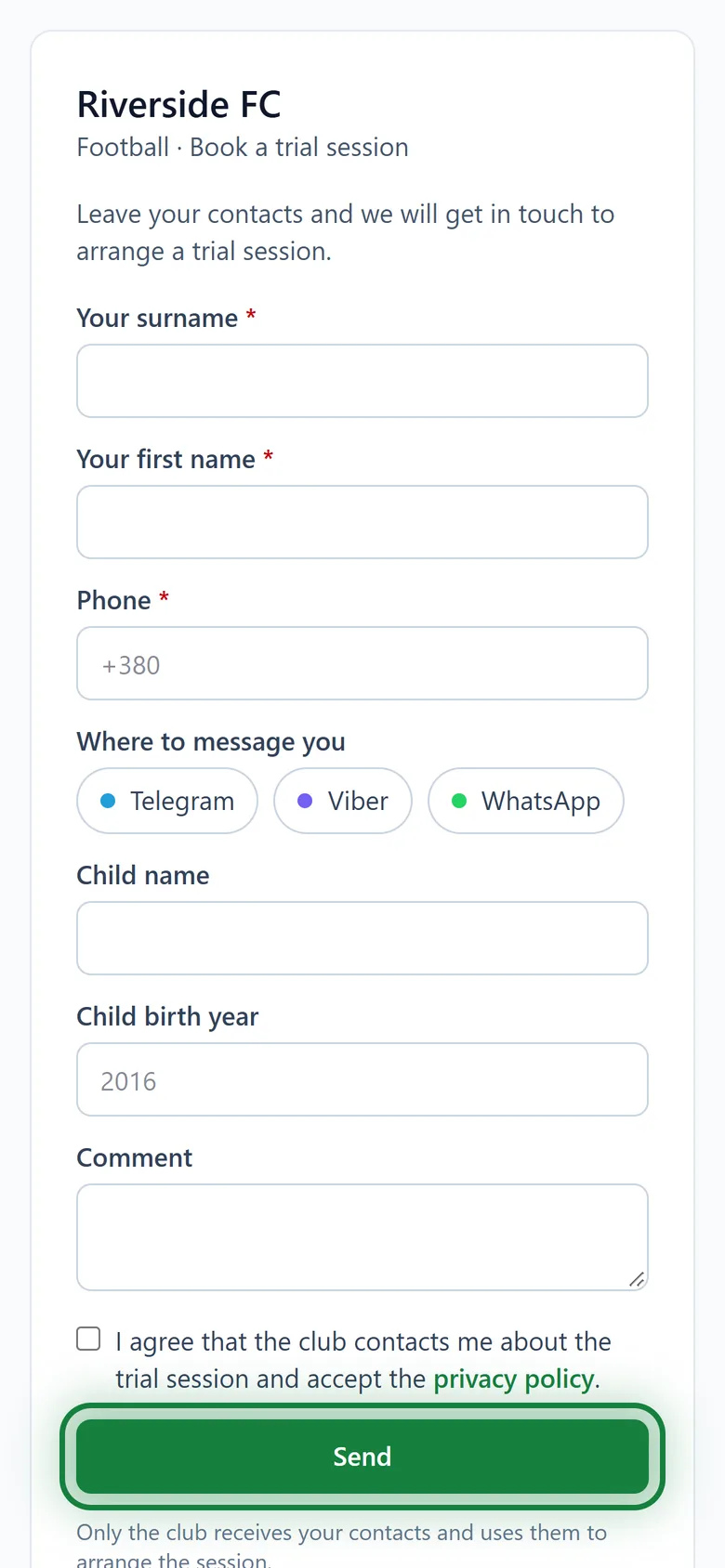
The request appears under Leads as New, with Website as its source.
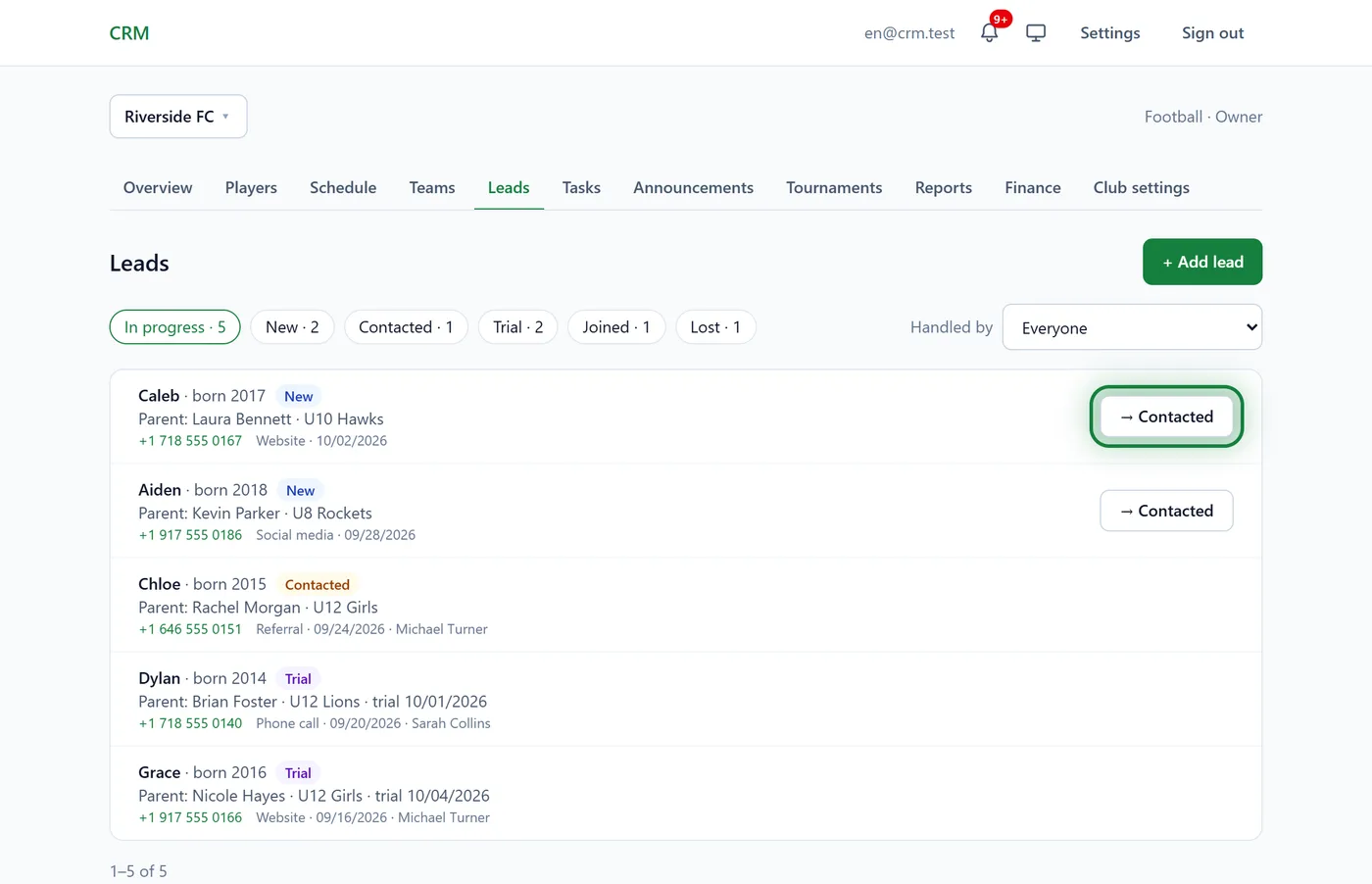
There is no separate notification about a new request, so look at Leads every day. Leads from a phone call or social media are added with + Add lead.
Working a lead
Spoken to the parents? Click → Contacted in the list.
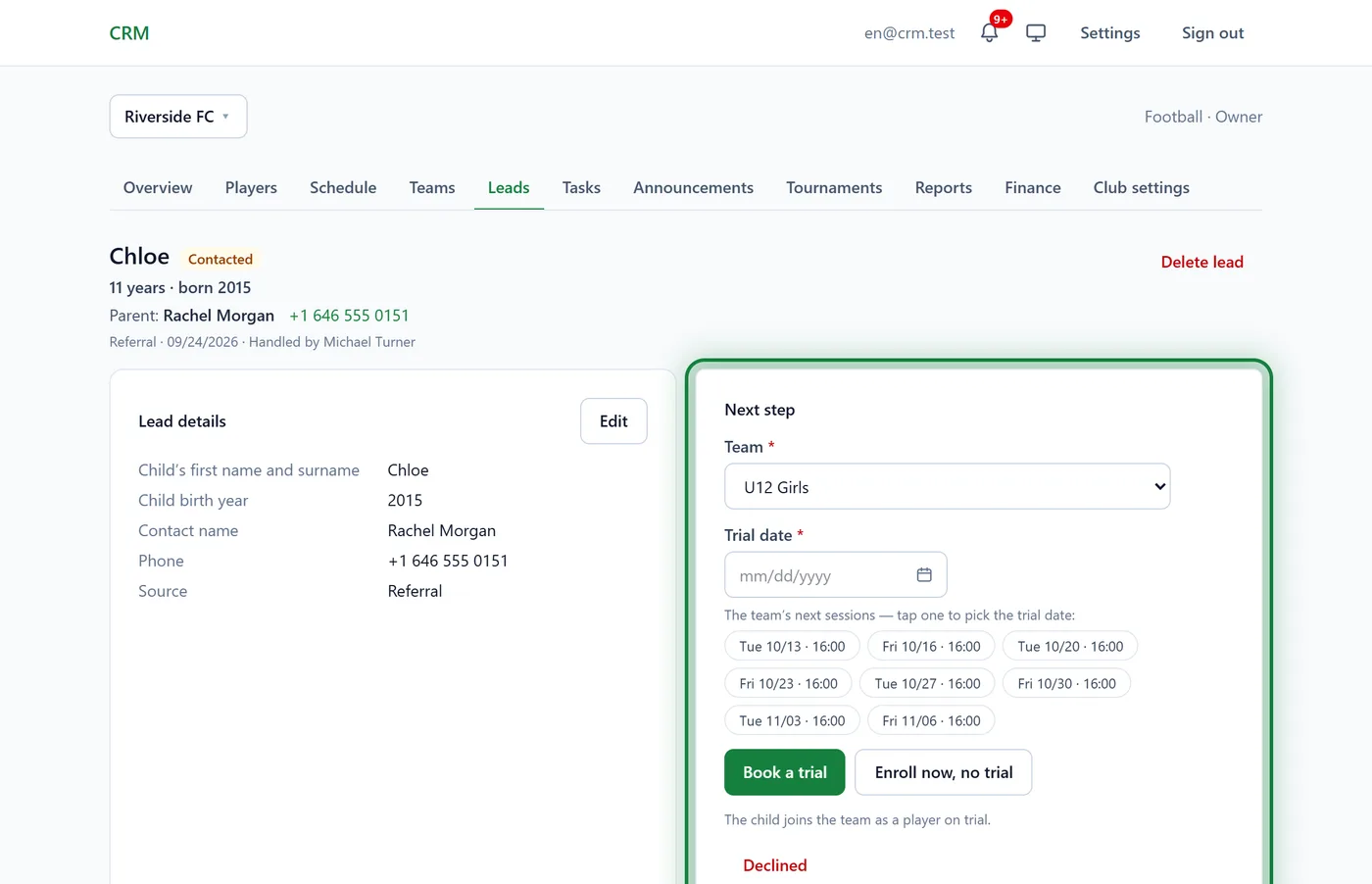
Open the lead. Under Next step, choose the Team (the system suggests those that fit the child's birth year) and the Trial date: you can simply tap one of the team's next sessions.
Click Book a trial. The child joins the team's roster as a player on trial, so the coach sees them when marking attendance. No trial needed? Enroll now, no trial.
After the trial, pick the outcome:
- Stays in the club: the player becomes active, and a manager gets a task to agree a subscription or payment;
- Declined: managers are notified, and the child leaves the team for the archive;
- Another trial: another day, or another team;
- Back to "Contacted": the child leaves the roster, their card is kept for a later trial.
The player is created from the child's name in the lead. If it's missing, you'll be asked to fill it in: Lead details → Edit.
Messages after the trial
Club settings → After the trial holds a few "N days after the trial" steps with ready-made texts. If the lead has an email, the message goes by itself. If not, whoever handles the lead is reminded, and the text is ready in the lead to copy into a messenger. The messages stop once the child stays or declines.
In the app
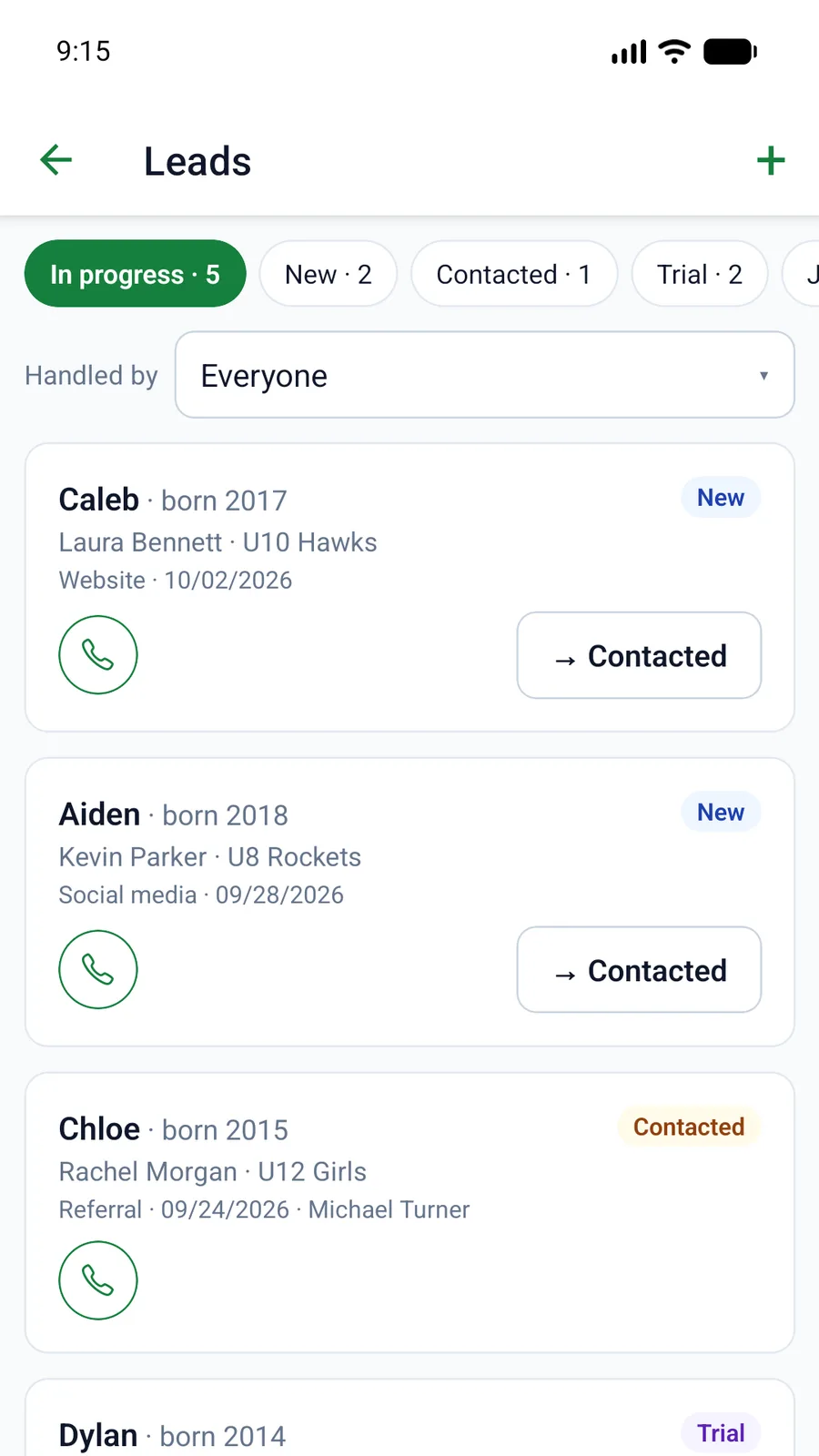
Menu → Leads: the same statuses, a call button and → Contacted right from the list.
Tips
- The Handled by filter shows Mine or Not taken on: an easy way to share out the calls.
- Add a task to a lead, like "call back on Thursday", and it shows up under Tasks.
- How many leads turned into players, and from which sources: Reports → Leads.
FAQ
Where did a player nobody added come from?
Someone clicked Book a trial on a lead: the player is created automatically, on trial. After Declined they go to the archive.
A coach doesn't see Leads
The club has turned off Coaches see leads. A manager can turn it back on in Club settings → Access.
How do I protect the form from spam?
Nothing to do: the form filters out bots and limits how many requests can come in a row.