 Sport CRM
Schedule and sessions
How a coach finds their sessions, adds a one-off session, moves or cancels one, gets a stand-in and calls players up for a game.
For: coach, manager
The Schedule shows every session at the club: regular training, one-off sessions, games and events. Each session opens from there, with attendance, QR check-in, announcements and changes.
Reading the schedule
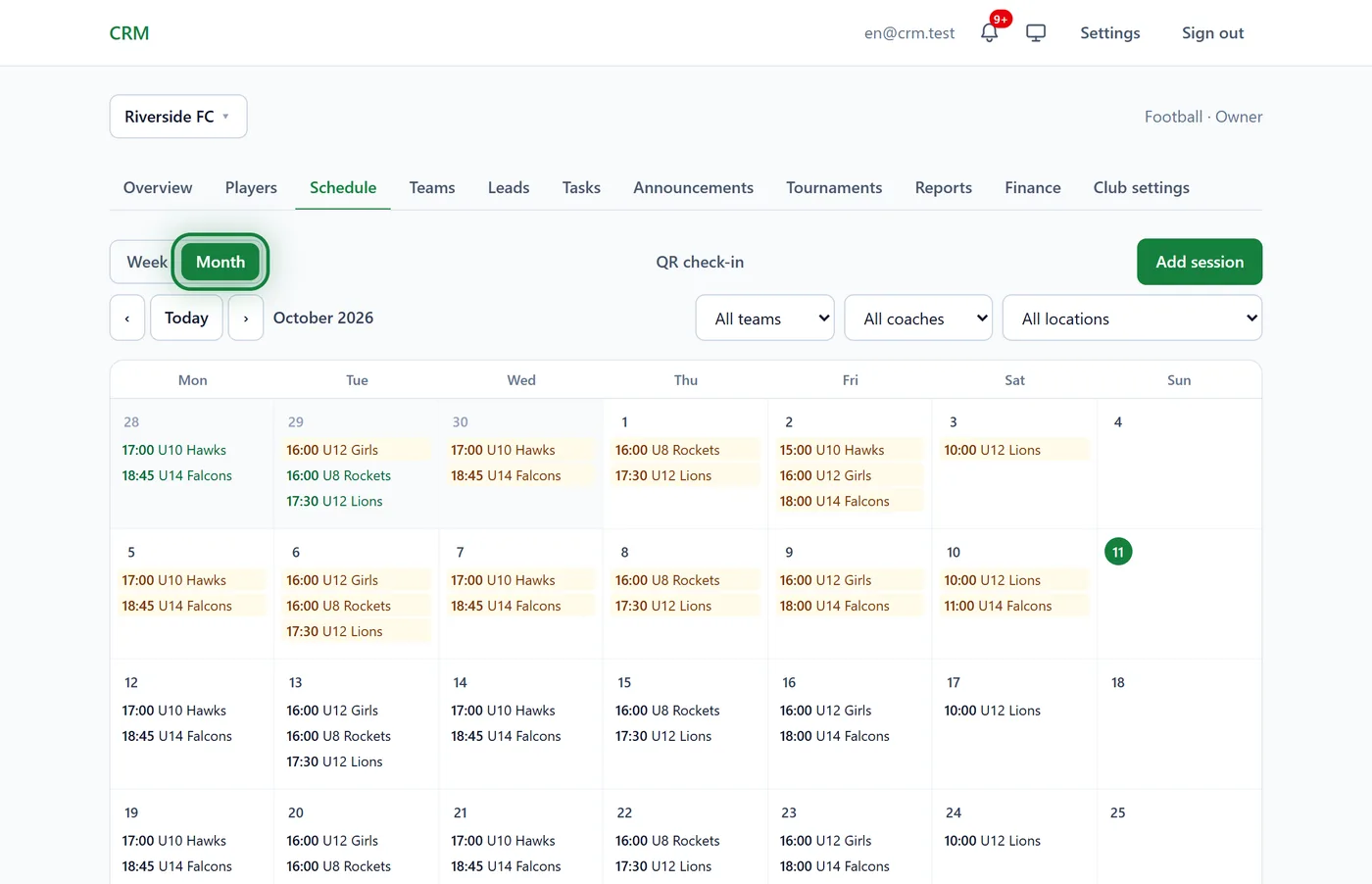
Open Schedule. At the top: Week or Month, the arrows and Today.
The filters on the right: team (All teams, My teams or one team), All coaches (for managers) and All locations. Coaches see My teams by default.

Each session card shows the time, the team and its state: Not marked (yellow), ✓ 12 of 15, ✓ Held or Cancelled. When a coach looks at "All teams", their own sessions carry a stripe.
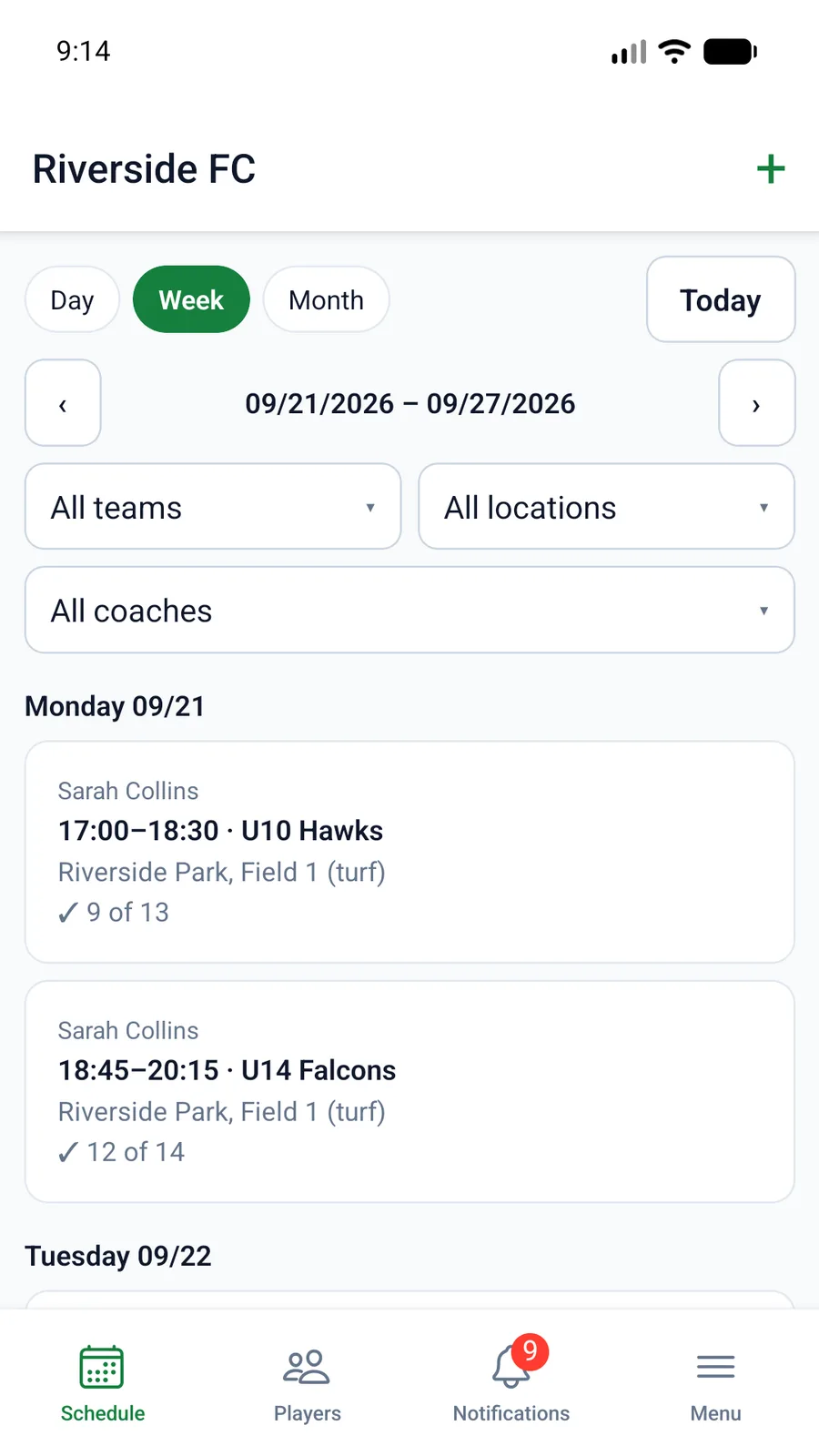
In the app
The Schedule tab: Day, Week or Month, with the same filters. Tap a session to open it.
A session
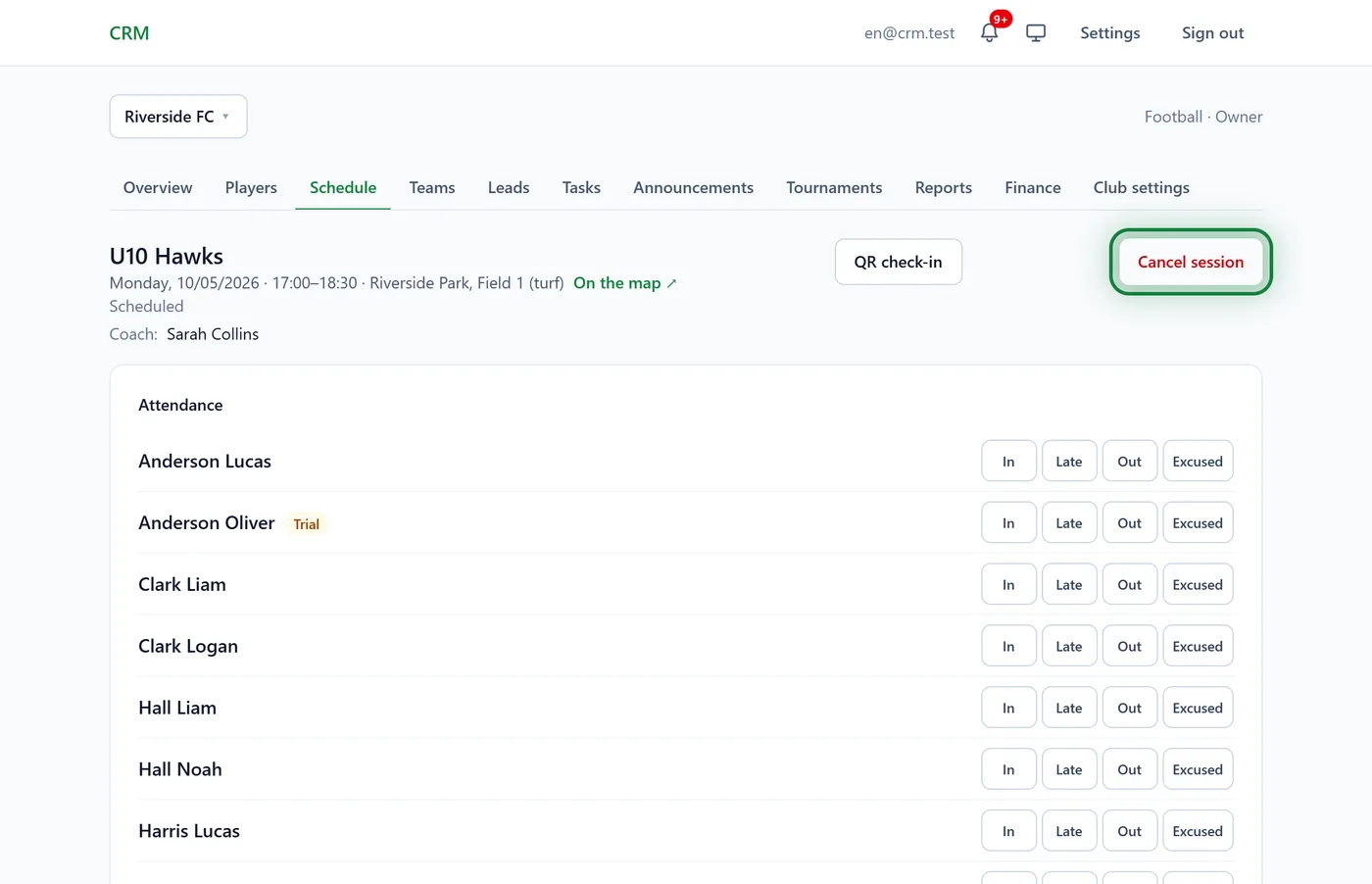
Click a session in the schedule. Its page has:
- Attendance: the players' marks, see Take attendance;
- QR check-in: marking by scanning, see QR check-in;
- Announcement for this session: "Yellow kit tomorrow!" for this group's families;
- Cancel session: top right. A cancelled session can be brought back with Restore session;
- Reschedule or edit: at the bottom: a new date, time, duration, type, location or note.
A one-off session
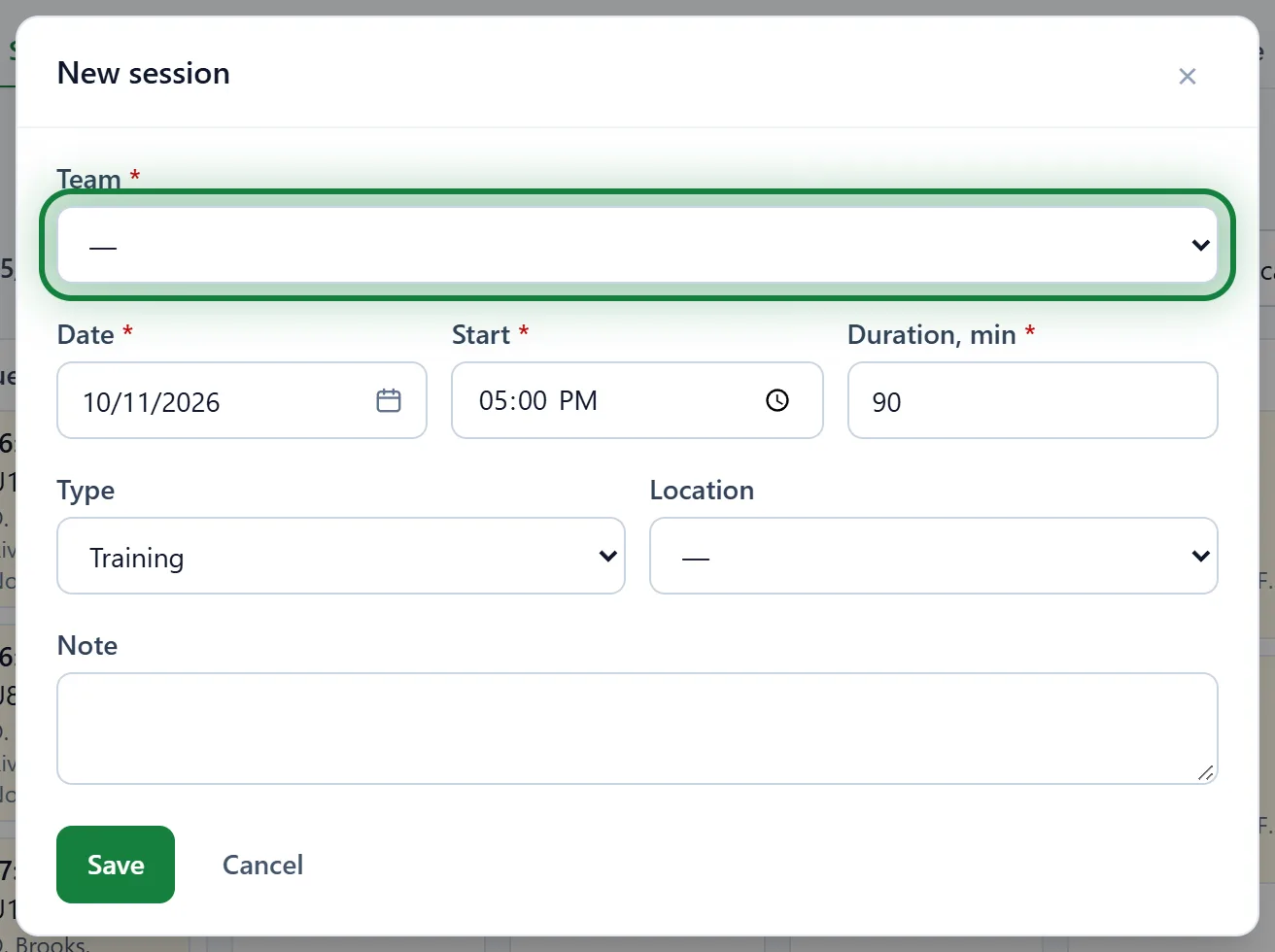
In the schedule, click Add session. Choose the Team, Date, Start, Duration, min, Type (training, competition, event) and Location. Coaches add sessions to their own teams only.
A stand-in coach
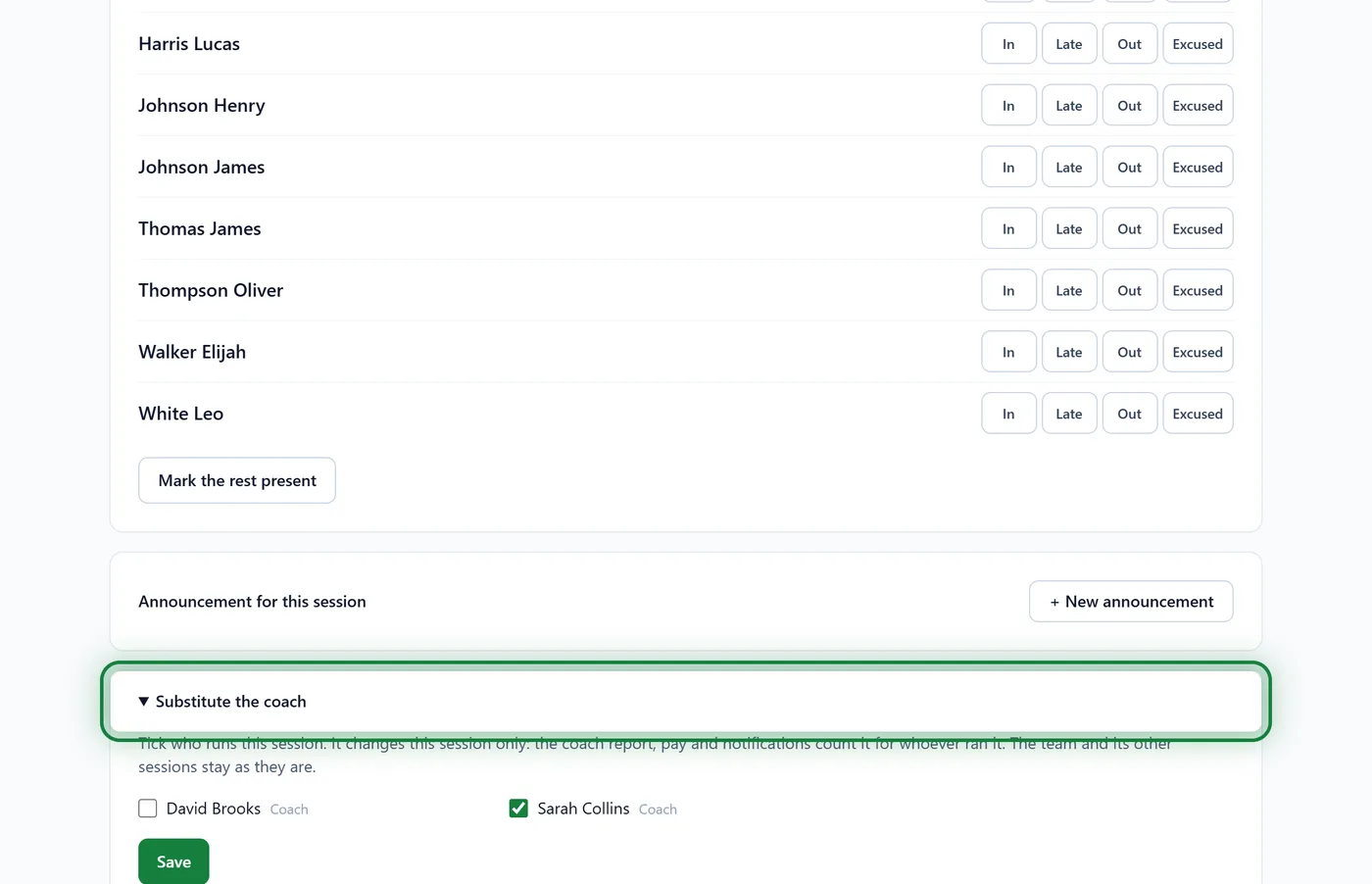
The coach is ill? A manager opens the session and, at the bottom, Substitute the coach: tick who runs this one session and click Save. It changes this session only: the coach report and pay count it for whoever ran it. Back to the team's coaches undoes it.
Calling players up for a game
Competitions, events and gradings have a Call-up block on the session page. Tick the players, set Meet at and the Meeting point, and click Save and notify. Parents get a notification and answer "Coming" or "Not coming"; the line above the list counts who is coming, not coming and hasn't answered. Remind those who have not answered sends another notification. Players not called up don't see this game in the family portal.
Tips
- If a family has already answered "Not coming", the session list shows "not coming" and the reason next to the child.
- To see the schedule in Google or Apple Calendar: Settings → Calendar → Get a link.
- A past session left unmarked: the coach gets a reminder in the notifications.
FAQ
A coach can open another team's session but can't change anything
Coaches only view other teams' sessions. The team's coach, a stand-in or a manager can change it and mark attendance.
How do I change a session for every week from now on?
That is the team's weekly timetable, changed by a manager on the team's page. See Teams and the schedule.
Will parents know a session is cancelled?
In the family portal a cancelled session is crossed out. To be sure they notice, add an Announcement for this session or post in the group chat.