 Sport CRM
Import players from Excel
Move your whole player list from a spreadsheet or another app in one go, with groups, parents' contacts and debts.
For: manager, owner
Any Excel (.xlsx) or CSV file with one person per row will do: an export from another app, a Google Sheet, a coach's own list. Columns are recognised by their headers in English, Spanish, Ukrainian and Russian; anything else you can match by hand.
Steps
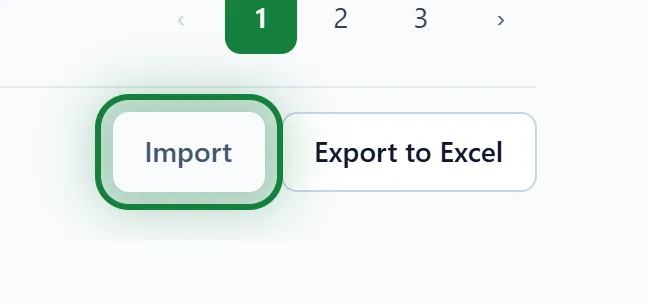
Open Players and scroll to the bottom. Click Import. (The same link is in Club settings → Data.)
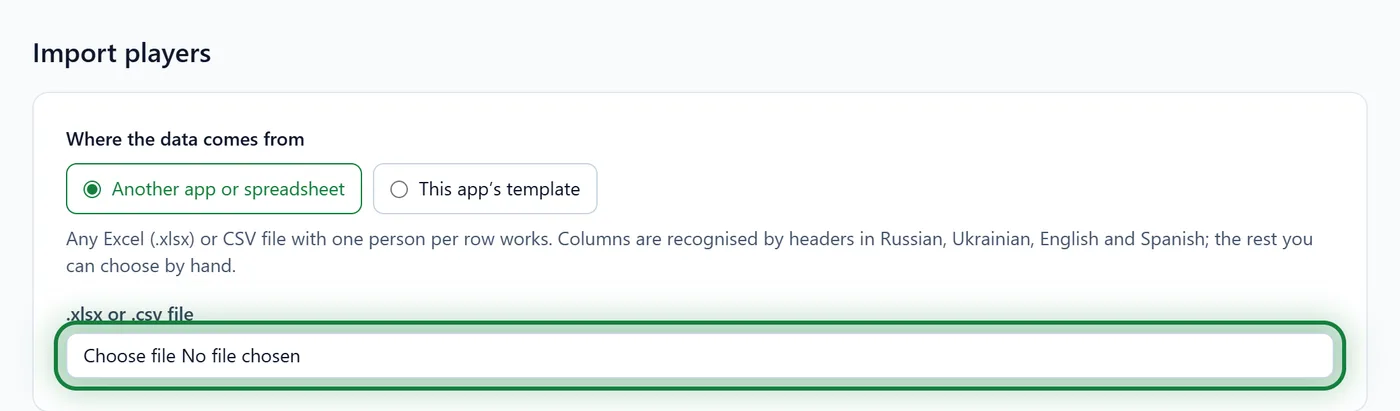
Under Where the data comes from, choose Another app or spreadsheet. Then click the .xlsx or .csv file field and pick your file.
Check the Columns: next to each column of the file you see example values and an Import into field. Most are already filled in. Leave anything you don't need on — Do not import.
- You need a full name column, or separate last name and first name columns.
- If the file has several sheets, or the headers are not on the first row, change Sheet and Header row.
Below is a preview: To import: N rows. Skip people already here (same name and date of birth) is on, so importing the same file twice is safe.
Click Import. You'll see how many people were added and how many were skipped.
Use our template instead
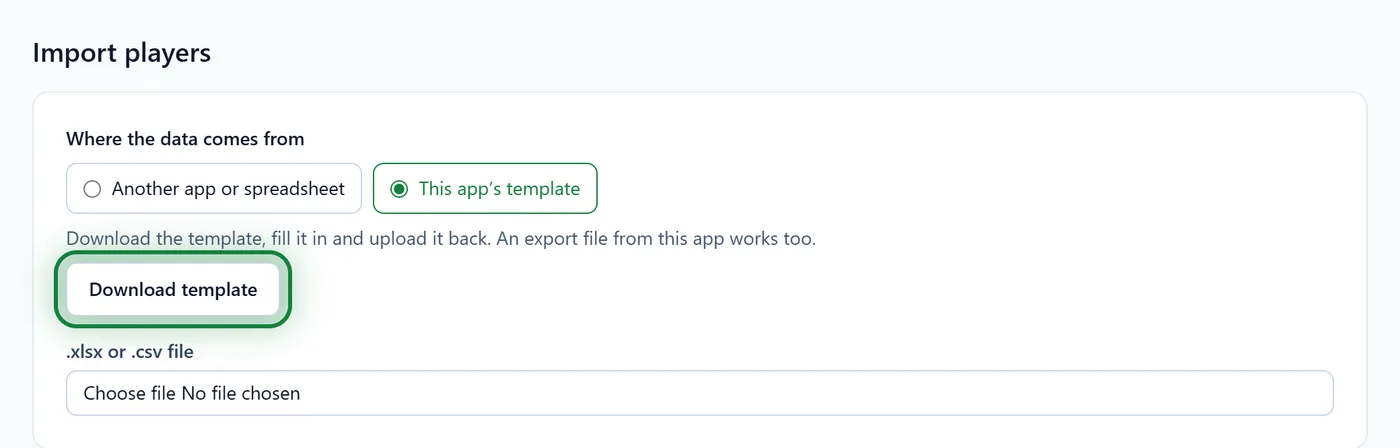
No export from another app? Choose This app's template, click Download template, fill it in with Excel or Google Sheets and upload it back.
Tips
- Debts. If your club uses the finance module, point the debt column to Debt on switching. A positive amount becomes one charge on the player's balance. Credit is not carried over.
- The old .xls format can't be read: open the file in Excel or Google Sheets and save it as .xlsx.
- Up to 1,000 rows at a time. Split a longer list into parts.
- The file is read in your browser. Only the rows you import are sent to the server.
FAQ
The import says "Nothing was saved"
An import is all or nothing. If even one row has an error (say, a date that couldn't be read), nothing is saved. Rows with errors are shown in red: fix the file or the column matching and click Import again.
I have more players than my plan allows
The free Start plan covers up to 50 active athletes and 3 groups. An import that goes over the limit saves nothing. Move to the Club or Academy plan, or import part of the list.
Who can import?
Managers and the club owner. Coaches don't see the Import button.
How do I move my data from another app?
Export your student list from your current app to Excel or CSV and upload the file here as described above. The columns are usually recognised automatically.